
Boost Internet Speed and Enhance Security: A Complete Guide to Changing DNS Settings
Speed up your internet strengthen - Speed up your internet, strengthen your security DNS - When we browse the internet, we use DNS (Domain Name System) services that translate website names (e.g., google.com) into IP addresses that computers understand. This system is one of the fundamental building blocks of the internet and is essential for accessing any online resource. However, many users rely on the standard DNS servers assigned by their internet provider, which may not always be the most efficient or secure option.
Switching to alternative DNS providers can significantly improve your internet experience. These changes offer important advantages in terms of both speed and security. By choosing a DNS server that is better optimized and geographically closer to you, you can noticeably increase the loading speed of web pages.
In addition to speed improvements, some third-party DNS providers offer extra layers of protection to block malicious websites and guard against phishing attempts. These services help you defend more effectively against online threats and allow you to browse the internet more safely.
Privacy is also an important factor. Your internet provider may track your DNS queries, but some alternative DNS services prioritize user privacy and do not log your internet activity. This is a simple yet effective way to strengthen your online privacy.
Changing DNS Settings in Windows
To change DNS settings in the Windows operating system, you must first go to the "Network and Sharing Center," and then edit the adapter settings. Here, navigate to the properties of your active network connection (e.g., Wi-Fi or Ethernet) and select "Internet Protocol Version 4 (TCP/IPv4)." In the window that opens, activate the "Use the following DNS server addresses" option and enter the preferred and alternate DNS server addresses into the respective fields, then save the changes.
Changing DNS Settings on Mac
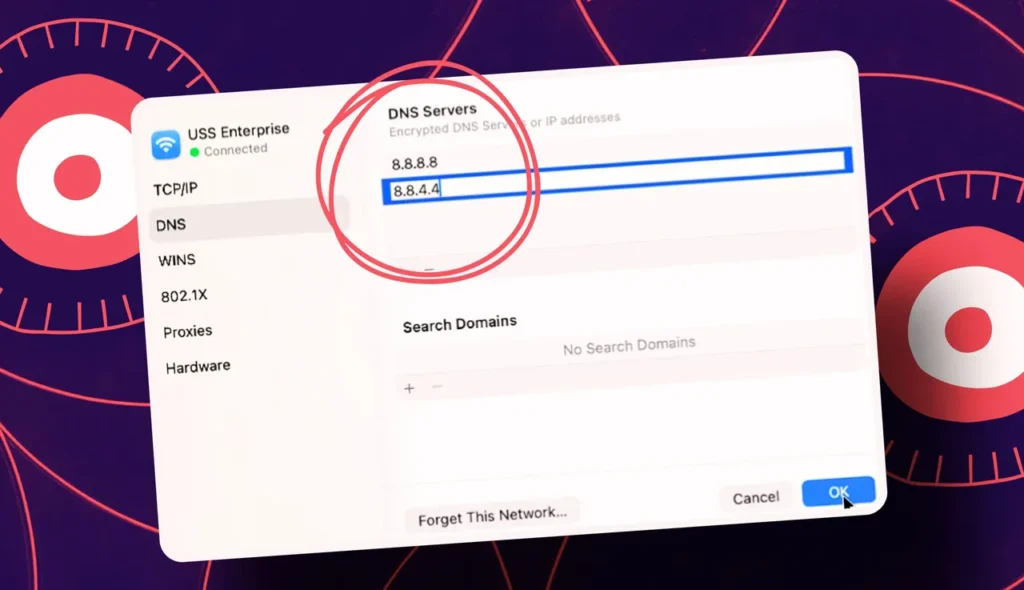
For Mac users, the process of changing DNS settings is done in the "System Settings" (or "System Preferences" in older versions) section, by navigating to the "Network" option. Here, select your active network connection and click the "Advanced" button. In the window that opens, go to the "DNS" tab, where you can delete existing server addresses or add new ones. To apply the changes, click "OK" and "Apply."
Conclusion
Changing your DNS service is an easy yet effective method to optimize your internet speed, as well as strengthen your online security and privacy, with just a few simple steps. This small change can make a significant difference in your digital experience, providing you with a faster, more secure, and more private internet usage.
Reader comments
There are no comments yet. Be the first to comment.
Write a comment